

Mac archive guide
How to preview ZIP files on a Mac without extracting them
Browse a ZIP, search filenames and paths, and preview supported files for free.
Pro adds single-file copying, up to 100 MiB per file, and deeper folder navigation. Requires macOS 15.4 or later.
On this page
ZIP preview in 12 seconds
Preview before extracting
Browse a ZIP file from Finder Quick Look
- Install SpacePeek from the Mac App Store.
- Open SpacePeek and click Manage Quick Look Extensions. In the Quick Look section of System Settings, enable SpacePeek’s Archive Preview extension. Its switch is separate from Folder Preview.
- In Finder, select the ZIP file and press Space.
- Browse the archive folders and files in List or Grid view. Select a supported entry to inspect its preview and available metadata.
- Click the magnifying glass at the top right to search for part of a filename or its internal archive path.
Still seeing a generic ZIP preview? Reopen SpacePeek, choose Manage Quick Look Extensions, and check that Archive Preview is enabled. Then close Quick Look and select the ZIP again.
Previewing leaves the source archive unchanged. It does not create an extracted folder beside the ZIP.

Search inside the ZIP before you unpack it
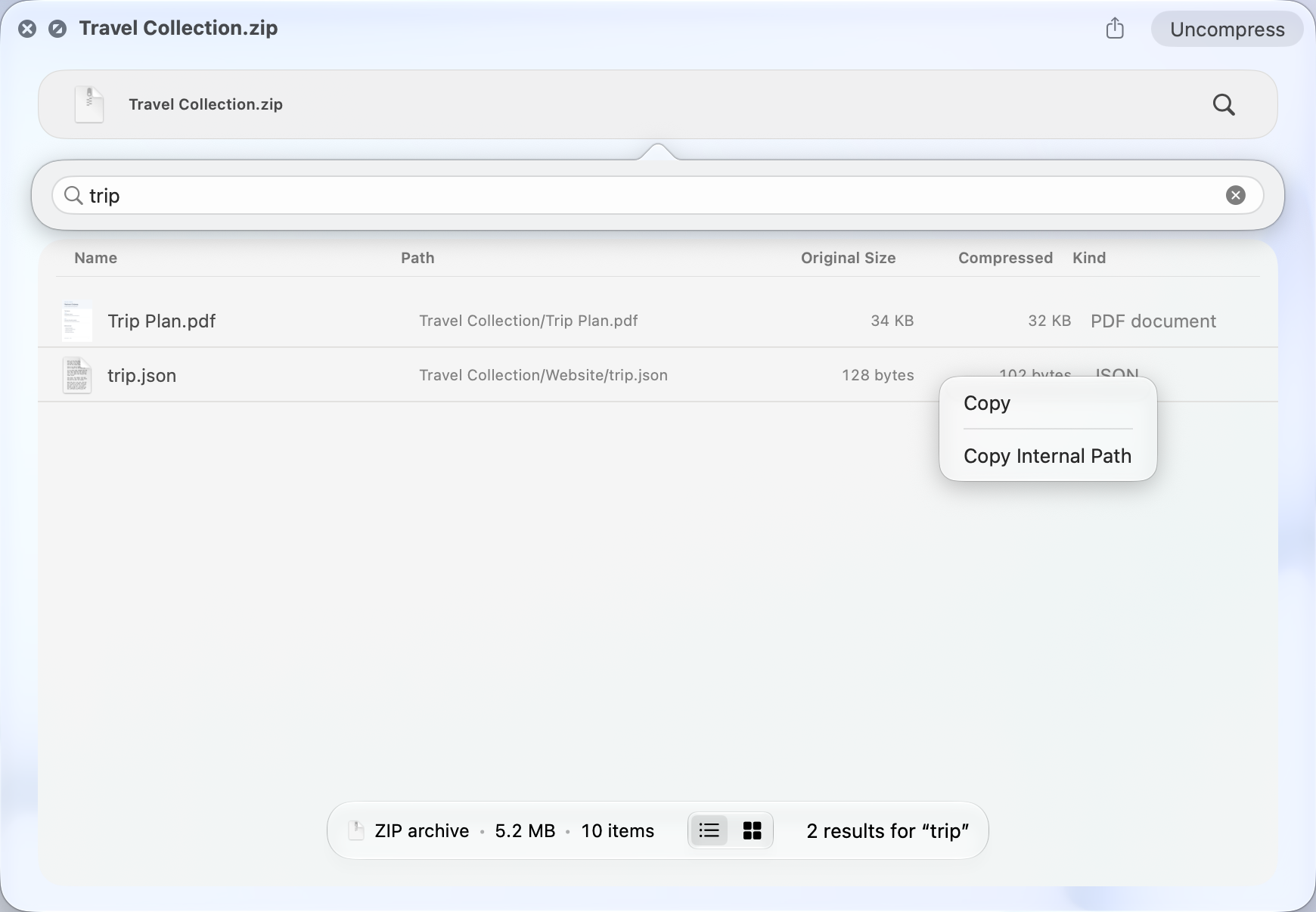
Click the magnifying glass at the top right of the archive preview and type trip to follow this example.
SpacePeek archive search matches item names and internal relative paths. It does not perform a full-text search inside documents. Results show the archive path plus original and compressed sizes when those values are available.
For example, searching for “trip” in the archive below finds Trip Plan.pdf and trip.json. If you get no matches, try a shorter part of the filename. Words inside the PDF will not match.
From preview to a Finder file
Need just one file? Copy it with Pro
Browse, search filenames and internal paths, and preview supported files for free. With Pro, you can copy one selected file and paste it in Finder, up to 100 MiB per file. Browsing the archive root and first child level is free; deeper folder navigation also requires Pro.
- Find the file in the ZIP using the browser or search, then click it to inspect its preview. In this sample, choose Trip Plan.pdf.
- Right-click the file or open its More actions (…) menu, then choose Copy.
- Close Quick Look, open your destination folder in Finder, and choose Edit → Paste Item (or press ⌘V in Finder).
- Check that Trip Plan.pdf appears in that folder. You now have an ordinary file to open in its app, without unpacking every item in the ZIP.
Two different Copy actions: Copy Internal Path is free and copies the entry’s path as text. Copy copies the actual file and requires Pro. Copying a path will not paste a file into Finder.
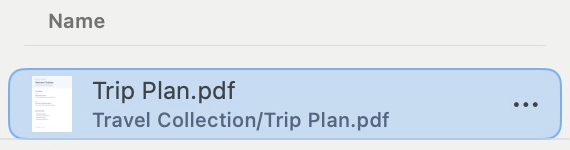
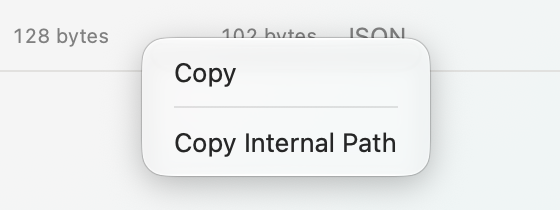
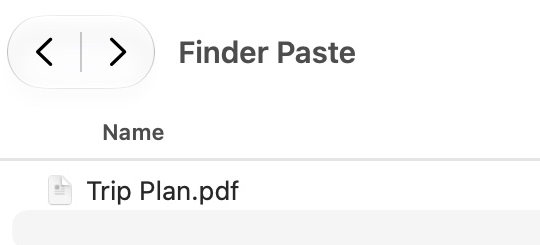
This takes one file out of the archive; it is not a full extraction workflow. Copying requires reading and decoding the selected entry. If you need the whole archive, or SpacePeek cannot copy the selected file, use an appropriate extraction app.
Built into macOS
What Finder does with a ZIP file
Apple’s ZIP and unzip guide for Mac describes the standard workflow: double-click a .zip file and macOS expands it into the same folder. That is the right choice when you already know you need the contents.
Extraction can be less convenient when you only want to answer a smaller question first: Which folders are inside? Is the expected file present? How large are the original entries? Do you need the whole archive or one item?
Quick Look itself is opened by selecting an item and pressing the Space bar, as documented in Apple’s Quick Look guide. A Quick Look extension can provide a richer preview for a file type, which is how SpacePeek adds its archive browser.
Which archive formats can SpacePeek preview?
| Format | SpacePeek support | What to expect |
|---|---|---|
| ZIP | Supported | Browse readable folders and entries, compare sizes, search names and paths, and preview supported files. |
| RAR and 7z | Supported | Browse and preview supported archives, including supported solid archives. Some entries may exceed preview limits. |
| TAR | Supported | Browse the archive structure through the Archive Preview extension. |
| Compressed TAR | gzip and bzip2 supported | Inspect supported .tar.gz, .tgz, .tar.bz2, and related archives. |
| Standalone GZIP or BZIP2 | Supported | Preview the compressed file. A standalone .gz or .bz2 file need not contain a folder tree. |
If a preview fails, read the warning first. Check that the download finished and the archive has not changed. Password protection, unsupported formats, or preview limits can also prevent a file from opening; use an appropriate extraction app in those cases.
Preview or extract: which should you choose?
| Your goal | Better starting point | Why |
|---|---|---|
| Use or edit most files | Extract the archive | You need ordinary Finder files available to their apps. |
| Confirm what the ZIP contains | Preview first | You can inspect names, structure, sizes, and supported previews before creating another folder. |
| Find one item by name | Preview and search | You can narrow the archive without browsing every folder manually. |
| Use one selected file | Copy with Pro, then paste in Finder | Take the file you need without unpacking every entry. |
| Archive looks damaged or unfamiliar | Check the warning | Re-download an incomplete archive or use a tool that supports its format. A preview is not a security check. |
“Without extracting” here means SpacePeek does not make a complete unpacked copy beside the source archive just to list and preview it. Reading metadata or displaying a supported entry still requires SpacePeek to parse or decode the relevant archive data.
Does previewing change the archive?
Previewing does not modify the source archive or upload its contents to SpacePeek. Parsing and decoding happen on your Mac.
Copying an explicitly selected entry is a separate user action; previewing alone does not place it in a Finder folder. For the broader data-handling boundaries, read how SpacePeek protects your privacy.