

Mac storage guide
How to show folder sizes in Finder on a Mac
To show folder sizes in Finder, switch to List view with Command‑2, press Command‑J, and enable Calculate all sizes. To check one folder’s total, use Get Info.
Method 1 · Built in
Show folder sizes in Finder List view with Calculate all sizes
- Open the parent folder containing the folders you want to compare.
- Choose View → As List, or press Command‑2.
- Choose View → Show View Options, or press Command‑J.
- Turn on Calculate all sizes.
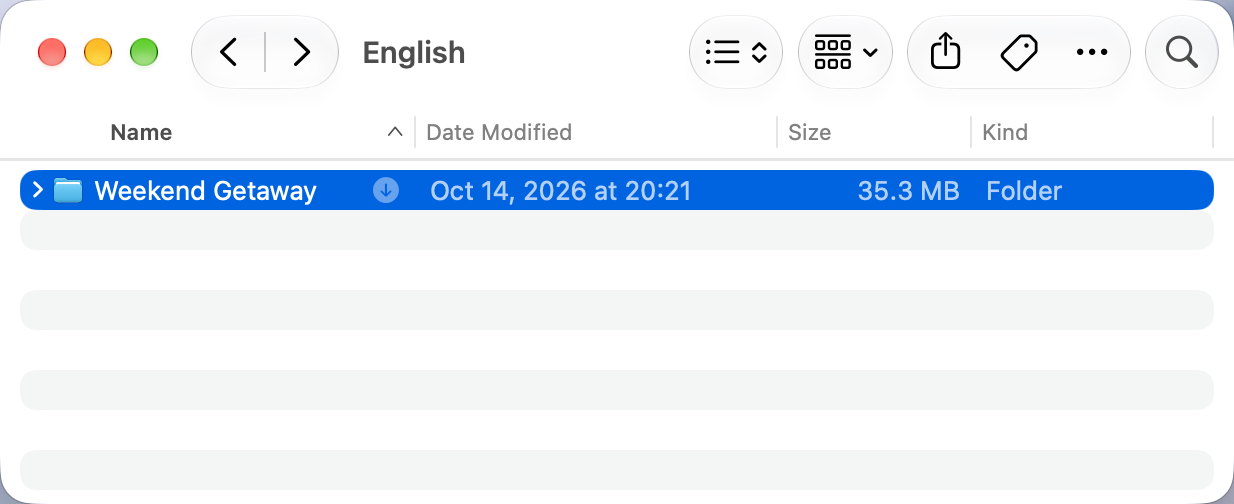
- Wait for the folder totals to appear in the Size column. Click its heading to sort by size; click again to reverse the order.
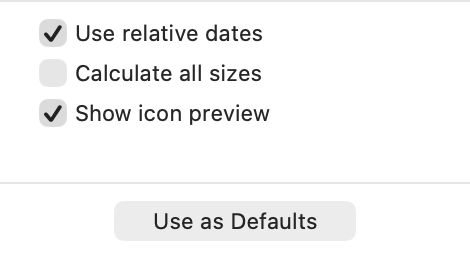
If the Size column is hidden, Control-click any column heading and select Size. Apple’s Finder view options guide explains how to show columns and sort a list, and its Mac keyboard shortcuts reference documents Command‑2 and Command‑J.
This method compares sibling folders in the same Finder window. Calculating many folders or deeply nested contents can take longer than checking one folder with Get Info.
Use this setting in other folders: Click Use as Defaults in View Options to apply the settings to folders that use the same view. This is a view preference, not a background scan of every folder on your Mac. A folder with its own saved view settings may need to be adjusted separately.
Method 2 · Built in
Use Finder Get Info for one folder
- Open Finder and select the folder.
- Press Command‑I. You can also Control-click the folder and choose Get Info.
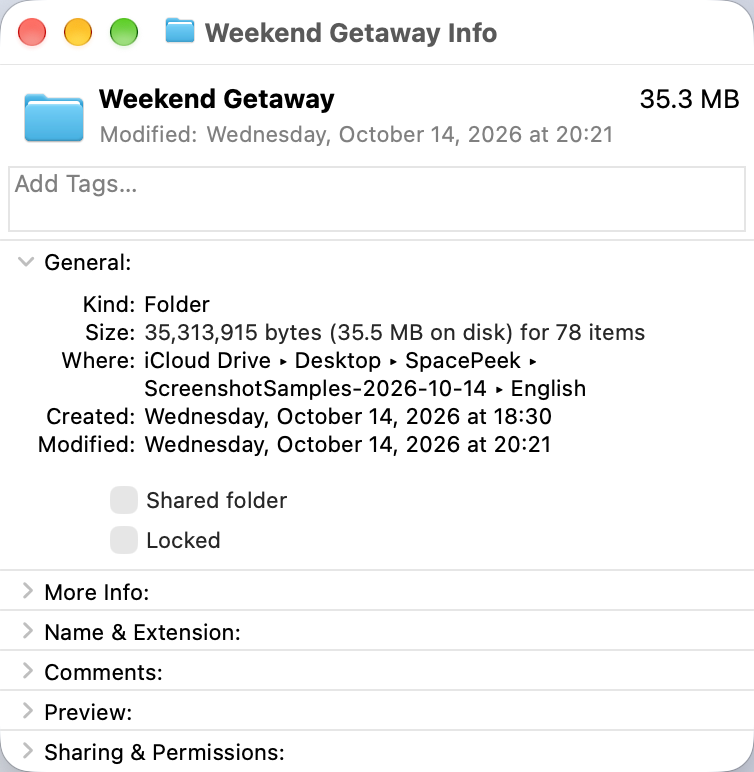
- In the General section, read the value next to Size. Wait if Finder still says it is calculating.
Apple documents the same menu command and keyboard shortcut in Get file, folder, and disk information on Mac.
Get Info is the best default when you need an occasional total and do not want to install anything. It also includes general Finder metadata and Sharing & Permissions controls. It does not rank the largest items inside the folder or visualize how the total is distributed.
Comparing two folders? Open Get Info for each selected folder. Finder gives each folder its own information window, making the totals visible side by side.
Screenshot context: The View Options detail was captured in Light appearance on October 29, 2026. The Get Info and List view result screenshots below were captured on October 16, 2026. Labels may differ across macOS versions.
Why is Finder not showing folder sizes?
Finder normally shows individual file sizes without adding up every folder’s contents. A folder total requires counting nested items, so the Size column can show a dash until you enable Calculate all sizes.
Calculate all sizes is missing from View Options
Make sure the Finder window is in List view: press Command‑2, then reopen View Options with Command‑J. Icon, Column, and Gallery views have different options.
The Size column is missing
In List view, Control-click a column heading, such as Name, and select Size. Enabling folder-size calculation does not help if the column displaying its result is hidden.
A folder still shows a dash or Calculating
Check that Calculate all sizes is enabled for the current folder and allow time for the scan. Many small files, nested folders, storage speed, permissions, and cloud-backed items can affect how long calculation takes. For one folder, try the more targeted Get Info check and confirm the folder is accessible.
Method 3 · Quick Look extension
See folder size and largest items with SpacePeek Quick Look
To see which files and subfolders contribute to a folder’s size:
- Install SpacePeek from the Mac App Store.
- Open SpacePeek once and follow its setup instructions to enable the Quick Look extensions.
- Select a folder in Finder.
- Press Space.
- Review the total size, file and folder counts, largest items, and storage distribution.
Overview shows the largest items. To compare files yourself, open Contents and sort by Size. Scanning starts when you open Quick Look; large folders can take time.
If you still see a generic folder preview, reopen SpacePeek and check its extension setup, then try again.

Which method should you choose?
Swipe or scroll sideways to compare all four columns.
| Method | Use it when | What you get | Tradeoff |
|---|---|---|---|
| Calculate all sizes | You are comparing sibling folders | Multiple totals in the Size column | Finder must calculate every folder in view |
| Get Info | You need one occasional total | Folder size and standard Finder information | A separate window; no largest-item breakdown |
| SpacePeek | You want a total and storage context from Quick Look | Size, counts, largest items, distribution, and first-level contents | Requires installing and enabling the extension |
For an occasional size check, start with Get Info. To compare several folders, use List view. Use SpacePeek when you also need to find the large items inside.
Can these checks change or delete files?
Checking a folder’s size does not delete its contents. SpacePeek’s scan and preview are read-only. If you decide to move or delete a file afterwards, do that separately in Finder.
For more on file access and data collection, read how SpacePeek handles folder data and the formal Privacy Policy.