

Finder workflow comparison
SpacePeek vs Finder Get Info
If you only need a folder’s size, select it in Finder and press Command-I. If you want to find the files taking up that space, SpacePeek adds a largest-items view and browsable contents to Quick Look.
What Get Info already gives you
Get Info: What are the properties of this Finder item? Folder size is one field among information such as kind, location, dates, tags, and Sharing & Permissions.
SpacePeek: How is this folder using storage? It centers the total size and adds context about the items that contribute to it. It does not aim to replace Finder’s file metadata or permission controls.
SpacePeek and Get Info compared
| Question | Finder Get Info | SpacePeek |
|---|---|---|
| How do I open it? | Select a folder and press Command–I | Select a folder and press Space |
| Is it built into macOS? | Yes | No; it is a separate Mac App Store app and Quick Look extension |
| Does it show total folder size? | Yes, after Finder calculates it | Yes, after the requested scan completes |
| Does it show file and folder counts? | Get Info shows the folder’s item count | Shows separate file and folder counts |
| Does it identify large contents? | No ranked largest-items view | Shows largest items and their share of the folder |
| Does it show storage distribution? | No storage composition chart | Shows a visual storage breakdown |
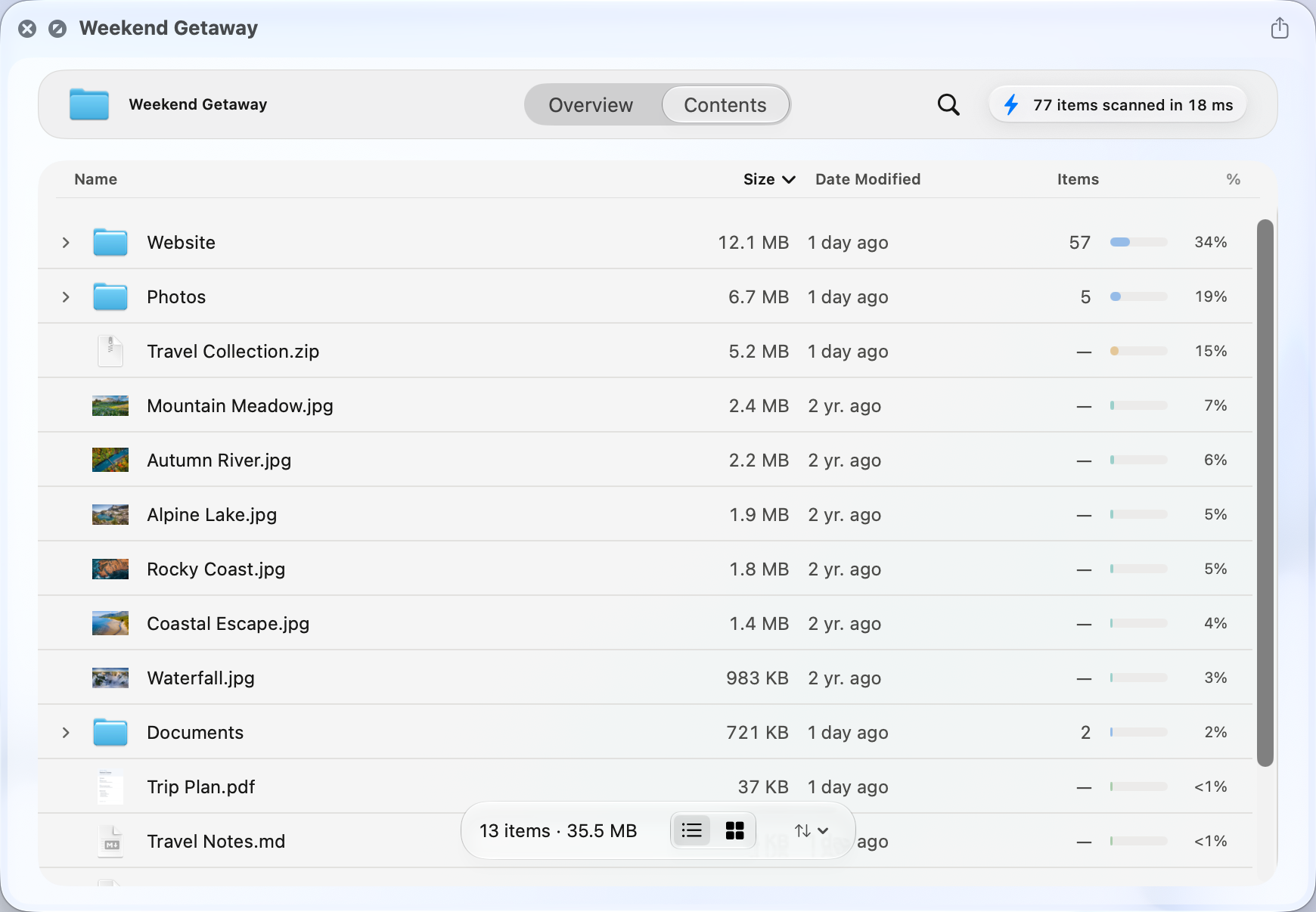
| Can I inspect first-level contents? | Not inside the Get Info window | Contents view provides a sortable, read-only list |
| Does it show standard Finder metadata? | Yes, including location, dates, and Sharing & Permissions | Storage analysis is the focus; it is not a permissions editor |
| Does it modify or clean files? | No cleanup workflow | Read-only scanning and previews; no cleanup action |
| Does it require a background index? | Finder calculates when requested | Scans when Quick Look opens; no background index |
Apple’s built-in option
Check a folder with Get Info
- Select a folder in Finder.
- Press Command–I.
- Wait for the Size field if Finder is still calculating.
- Close the information window when you are finished.
The separate window is useful when you want information to remain visible, or when you want to compare several selected folders by opening an information window for each. Because it is part of Finder, there is nothing to install or enable.
To investigate the total further without installing an app, open the folder in Finder List view and enable Calculate all sizes.
Storage-focused Quick Look
Check the contents with SpacePeek
- Install SpacePeek and enable its Quick Look extension.
- Select a folder in Finder.
- Press Space.
- Read the Overview, then switch to Contents when you need first-level detail.
- Press Space again or close Quick Look when finished.
This keeps the check in a preview interaction rather than a persistent information window. Overview is organized around total size, counts, largest items, and distribution. Contents provides List and Grid views with file previews and name search. The free download includes the selected folder and its first child level; the optional one-time Pro purchase unlocks deeper folder navigation and Reveal in Finder for folder search results.

What about speed?
Both tools need time to count files. A folder with many small files, an external drive, or cloud-backed items can take longer. Wait for the calculation to finish before comparing totals.
This guide does not compare scan speed. Choose based on the information you need: a folder total, or a breakdown of its contents.
Which should you use?
Choose Finder Get Info when…
- You need one folder total only occasionally.
- You do not want to install another app.
- You also need standard Finder metadata or Sharing & Permissions.
- You want a separate information window to remain open.
Choose SpacePeek when…
- You already use the Space bar to preview Finder items.
- You want to see which files or subfolders account for the total.
- File and folder counts or storage distribution help answer your question.
- You want to inspect first-level contents in a sortable, read-only view.
You can comfortably use both. Get Info remains the general-purpose Finder tool; SpacePeek adds a focused storage view for folders.